Notes about open source software, computers, other stuff.

Tag: org-mode

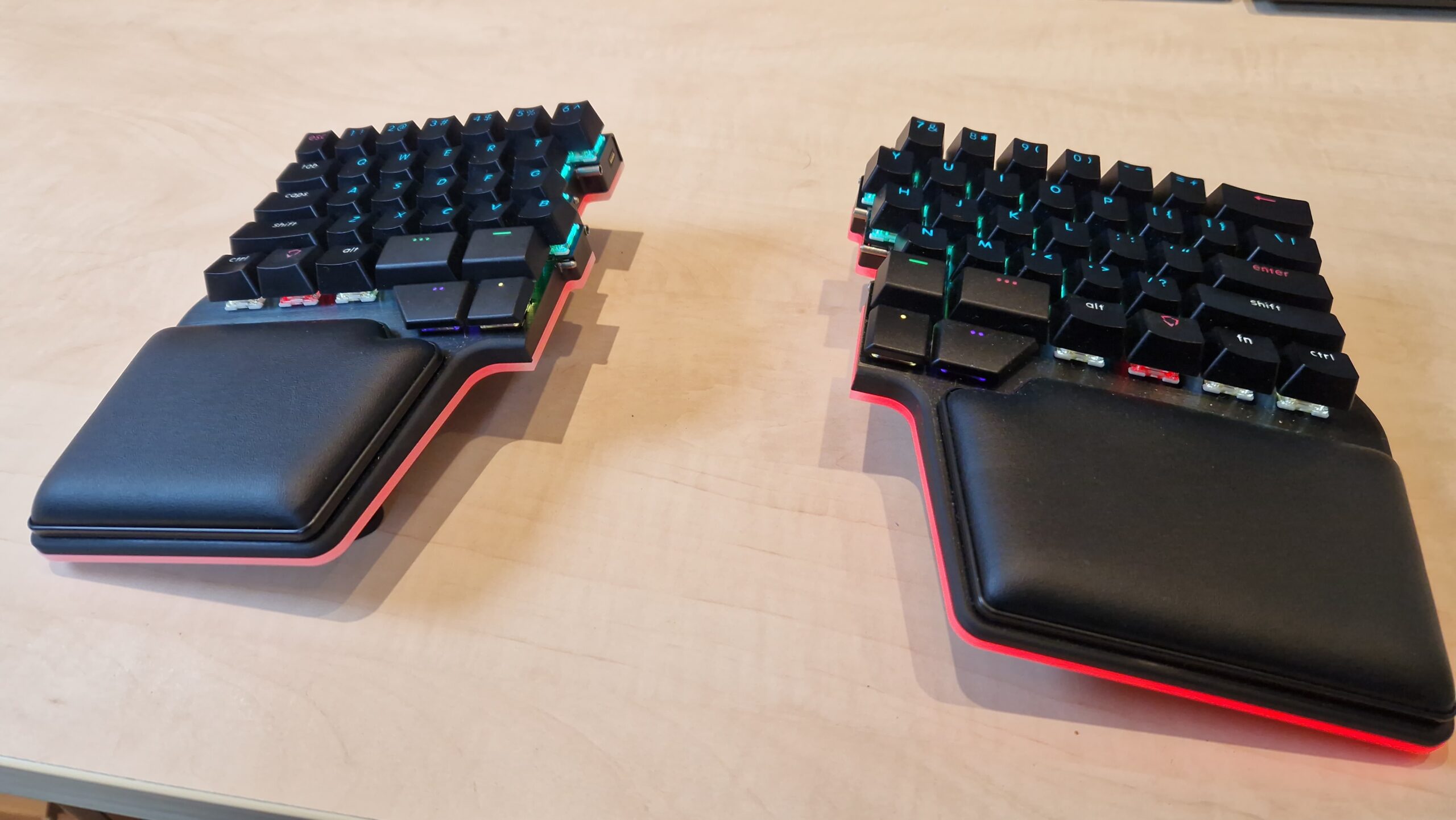
Review of 9 months with the Dygma Raise 2 split keyboard

20260115_154245.jpg

Back in November of 2025, I bought a Dygma Raise 2 split keyboard. I had been thinking about buying some kind of split keyboard for some time, but never bought one for several reasons: first of all, my Das 4 mechanical keyboard was (and is) still going strong. Second, they tend to be pretty expensive, and, third, I was a bit hesitant because most have fewer keys than a regular full-sized keyboard and/or have keys in different places, all of which require me to relearn my typing habits.

I started looking into it again in late 2025, when I was looking for a birthday present. I came across Dygma, a Spanish company, that offered two types of highly customisable keyboards, the Defy and the Raise 2. The latter seemed most attractive because it didn’t have a columnar layout, so I expected the learning curve to be less steep. After some more research I ended up buying one, with the wireless option, the tenting option and underglow. Basically the full package.

Fast forward to yesterday, when a colleague asked me about it. She was interested in getting one because she likes having her mouse right in front of her and currently has it on a lower level of the desk she uses. I started writing some pros and cons, but the text grew larger and larger, so I decided to reproduce it here, where it can maybe be of use to more people.

I have been using it since November 2025 as my daily keyboard. A summary of my experience so far:

  • You really have to put the mouse between the two halves. I first had it to the right of the keyboard, with the two halves at shoulder width, but in that case, reaching the mouse (a trackball in my case) meant overextending the lower arm to the right. This soon led to pain in the upper arm and elbow. Like you said: it turns out to be quite comfortable to have the mouse in between the halves.
  • Knowing how to touch type properly will be very helpful. I apparently needed to relearn some keys because initially, when I tried to hit an h or y I used my left hand. Which meant my finger hit “air”.
  • Be aware of the way the keys are laid out: some keyboards have them “the regular way”, i.e. the rows are slightly shifted horizontally compared to each other. As a result, the q is not right above the a (on a US layout), but slightly to the right of it. The alternative is a column layout where each row is straight above the other, i.e. the columns of keys are straight (but the rows may be misaligned). See for example the Dygma Defy keyboard. I was too afraid I’d have to relearn how to type to by a keyboard with a columnar layout.
  • Most split keyboards are “reduced” in the sense that they don’t have F-keys, nor arrows/pgUp/pgDn/home keys. Note that on my keyboard, the ` and ~ are missing too (the missing backtick is frustrating when writing markdown). Instead they tend to use layers that can be accessed via a modifier key (usually near the thumbs). Do not underestimate the effort to relearn your habits. An example: I was already quite comfortable with the Emacs movement shortcuts (C-p for up, C-f for right, etc.) and have configured LibreOffice and Firefox to also implement those as much as possible). This means that I often don’t need to go into the 2nd layer where my arrows and PgUp/Dn live. However… GitLab, for example uses C-b (back; right arrow) to insert two sets of ** for bold and I can’t seem to disable that. I very often still need to look at my keyboard to make sure I get the arrow keys right. Org mode shortcuts like M-S-arrow up to move a heading up become more involved because it’s not only Alt and Shift, but now also the modifier key for the arrows. I guess this last one is mostly a problem for Emacs users. Not that many other computer tools have shortcuts with that many keys. On the other hand, my 3rd layer contains the media playback keys and for some reason those became ingrained in my spine very easily.
  • If you decide on a keyboard with layers, I like it that mine also has LEDs in the keys so you get a visual confirmation of the layer you are in.
  • My keyboard also has a “tenting” option that allows you to angle the halves upwards (so that your palms are pointing a bit more towards each other). I find a 10° angle to be comfortable. However, I don’t think this a strict requirement. It’s a nice to have.
  • For a keyboard with layers, the configuration software is very important. Dygma’s Bazecor tool is solid. It works under Linux without any issues, gets regular updates, can flash the keyboard’s firmware and is easy to use for defining the layers. To get an idea of the options, you can download it and configure a virtual keyboard.
  • Mechanically, it is a great keyboard. No complaints. Sturdy, pleasant keys, similar to my previous regular mechanical keyboard.
  • Mine also has the option for wireless usage, but I tend not to use that. For one, you have to remember to recharge it, but more importantly, it takes a bit longer to wake up (it goes to sleep after x minutes of not using it to save battery life) and I found that to be annoying.
  • The built-in palm rests are great. Very comfortable.
  • Dygma has a 30-day return policy, which is nice, but seems too short to get used to a keyboard and make a proper decision.

Am I happy with it?

Yes, I’m happy with it, but I’m still missing my separate arrow keys. I (think that I) am as fast as I was before with regular typing, but having to use the 2nd layer for arrows and PgUp/PgDn hasn’t fully settled in yet (actually, maybe that is because I can get away with the Emacs movement keys in most cases).

For these last blocks of text I took my previous Das 4 out of storage again to see if I can still go back to it, and to do a proper comparison with the Dygma. And, yes, that works fine. I notice the typing is a bit less comfortable (in terms of positioning my hands), and the keys seem closer to each other, a bit more crowded. Oh, my wrong hand just typed the h. But moving my right hand to and from the arrow keys is as natural and fast as it was before. I guess that part of the discomfort there comes from the fact that regular arrow (and number pad keys) are in a columnar arrangement, whereas on the Dygma Raise their function is taken over by the regular keys ( e.g. the arrows are [, ], \ and +/= on the right side and, additionally, by s, d, f and e on the left side), which are staggered. Similarly, I can still easily type on my laptop keyboard (although I then miss some of the thumb keys of the Raise 2).

Is it worth the price?

Not sure. It was very, very expensive for a keyboard (around €600 with all the options). I bought it as a company expense, so I saved on taxes, but I don’t think I could have justified the expense if I had to pay it from my regular income/salary. I already thought my previous one (a Das 4) was expensive (IIRC just above €200), but that was a good investment compared to its Logitech predecessor (which wasn’t a mechanical keyboard). I did need a separate palm/wrist pad for it.

Would I buy it again?

Probably. The split design feels more comfortable on the shoulders and the tenting option is another bit of comfort. The layered approach is powerful (maybe I’ll need to spend a bit more time on it to see if I can iron out my arrow key issues), and I like it for the media keys and some other shortcuts. The fact that you don’t need to move your hands to the side is more comfortable and less intruding on the typing workflow.

Now my big question is: should I try a split keyboard with columnar layout… E.g. a refurbished Dygma Defy without all the bells and whistles and try it for 29 days… I guess not, I fear the learning curve is too much without the regular keys/key sizes for enter, backspace, shift…

Related Images:

Configuring Org2blog

Yesterday I installed Org2blog, which allows me to write my blog posts in Emacs org-mode and push them to my WordPress blog from within Emacs. So far I like it a lot! One less reason to leave Emacs :-), and hopefully also a reason to blog more often. Other good things about keeping your blog posts in Emacs are:

  • You can simply export them to e.g. PDF. In my current setup it’s a easy as adding the line

    #+LATEX_CLASS: lckartcl
    

    somewhere at the top of the file (before the actual text of the post starts) to tell org-mode that it should use my personal LaTeX export style, followed by C-c C-e l o and a nicely formatted PDF of my blog post pops up.

  • You keep all your blog posts in plain text format, so if you would decide to change to a different blogging platform, uploading the old posts should be fairly easy.

Org2blog’s GitHub page mentions C-c p as prefix key for Org2blog’s functions, but in my case this prefix is already used by Projectile, and looking in Org2blog’s Customize Group I noticed that C-c M-p is an alternative prefix, so I’m using that to get the following functionality:

C-c M-p p publish buffer
C-c M-p P post buffer as page and publish
C-c M-p d post buffer as draft
C-c M-p D post buffer as page draft
C-c M-p t complete category

This is the Org2blog configuration in my .emacs file (note that I’m using John Wiegley’s use-package macro):

;;;;;;;;;;;;;;;;;;;;
;; Configure Org2blog, which allows me to write blog posts in org-mode
;; and then push them to my WordPress blog.
(use-package org2blog
  :config
  (require 'org2blog-autoloads)
  (setq org2blog/wp-blog-alist
        '(("blog.karssen.org"
           :url "https://blog.karssen.org/xmlrpc.php"
           :username "xxxxxx"
           :default-title "New blog post"
           :default-categories "Linux"
           :tags-as-categories nil)))
  )

Related Images:

Upgrading to Org-mode 8.3 via the package repository: fixing an error

Today I tried to upgrade Emacs Org-mode to version 8.3. I used the regular package upgrade, but got the following error:

Invalid function: org-babel-header-args-safe-fn

Unfortunately, Irreal’s advice to byte-compile ob-R.el (twice) didn’t work out for me (by the way: thanks Planet Emacsen for aggregating so many useful posts!).

Browsing through some discussions on the emacs-orgmode mailing list it seemed that the error was due to org-mode being loaded while reinstalling the package. So I did the following:

  • I started emacs without loading my personal settings: emacs -Q
  • Next I ran the following code from my .emacs file in the scratch buffer (M-x eval-region) to set up the package manager:

    (require 'package)
    (package-initialize)
    ;; Add the original Emacs Lisp Package Archive
    (add-to-list 'package-archives '("melpa" . "http://melpa.org/packages/") t)
    ;; Add the user-contributed repository
    (add-to-list 'package-archives
                 '("marmalade" . "http://marmalade-repo.org/packages/"))
    
  • And finally I used the package manager to remove and then install the latest org package.

    Now all is fine again! 🙂

    And by the way: this is my first blog post using Org2blog!

Related Images:

Hiding columns in LaTeX export of org-mode tables

Today I was working on an Emacs org-mode document that I wanted to export to PDF. The document contained several tables and for the PDF export I wanted to hide one of the columns in the table. Of course I could have removed the column in the org source, but since I might need it in the future that wasn’t really an option.

Searching the internet I came across this e-mail discussion on the org-mode mailing list, where radio tables were suggested. I briefly tried to get that working, but it seems that this is more of an option if you are working in e.g. a LaTeX document and want to use org-style formatted tables.

So I tried another search, this time on how to hide columns in LaTeX, having the idea in mind that I could then use that to fix the org-mode export. Thanks to question on tex.stackexchange.com I came up with the followin solution:

First add the following lines at the top of the org file, after the regular org-mode header (if you have one):

#+LATEX_HEADER: \usepackage{array}
#+LATEX_HEADER: \newcolumntype{H}{>{\setbox0=\hbox\bgroup}c<{\egroup}@{}}

This defines a new column type with the name H (for ‘hidden’). Next, just before the table, simply add an #+ATTR_LATEX: attribute (see the org-mode manual):

#+ATTR_LATEX: :align lHl
| col 1 | to be hidden | col3   |
|-------+--------------+--------|
|     1 | secret       | info 1 |
|     2 | private      | info 2 |
|     3 | hidden       | info 3 |

When you export this to PDF (via C-c C-e lo) the table in the PDF only contains the first and last column.

Related Images:

Changing the default mode of the Emacs scratch buffer

After starting Emacs you end up in the *scratch* buffer (assuming you’ve disabled the startup message in your .emacs file). The *scratch* can be used for writing down notes and some Lisp experiments (since it uses the Emacs Lisp major mode by default).

Now, I’m not very much of a Lisp programmer, but I do use Org-mode a lot. Consequently, I found myself changing the buffer’s major mode to org-mode regularly. And Emacs wouldn’t be Emacs if you couldn’t change this to a default. So, thanks to Bozhidar Batsov over at Emacs Redux, I’ve added the following lines to my Emacs configuration file:

;; Set the default mode of the scratch buffer to Org
(setq initial-major-mode 'org-mode)
;; and change the message accordingly
(setq initial-scratch-message "\
# This buffer is for notes you don't want to save. You can use
# org-mode markup (and all Org's goodness) to organise the notes.
# If you want to create a file, visit that file with C-x C-f,
# then enter the text in that file's own buffer.
 
")

Related Images:

Using BibTeX from org-mode

I use Emacsorg-mode a lot for writing notes, todo lists, presentations and writing short reports. Recently I started writing a larger report which I normally would have done in LaTeX. This time, since the notes related to the project were already in org format, I decided to write the whole report in org-mode. The one thing I needed for that was using BibTeX bibliographies (and RefTeX) from org-mode. A quick web search revealed that that can easily be done by adding the following to your .emacs file:

;; Configure RefTeX for use with org-mode. At the end of your
;; org-mode file you need to insert your style and bib file:
;; \bibliographystyle{plain}
;; \bibliography{ProbePosition}
;; See http://www.mfasold.net/blog/2009/02/using-emacs-org-mode-to-draft-papers/
(defun org-mode-reftex-setup ()
  (load-library "reftex")
  (and (buffer-file-name)
       (file-exists-p (buffer-file-name))
       (reftex-parse-all))
  (define-key org-mode-map (kbd "C-c )") 'reftex-citation)
  )
(add-hook 'org-mode-hook 'org-mode-reftex-setup)

After that, RefTeX works, but exporting the org document to PDF (via LaTeX) didn’t include the bibliography entries. A quick look at the error log showed that bibtex hadn’t been run, so the question was: how to tell org-mode to do that too when exporting. The answer is to tell org-mode to use the latexmk Perl script (on Debian/Ubuntu it is easily installed from the package repositories) when exporting to PDF. I added the following lines to my .emacs file:

;; Use latexmk for PDF export
(setq org-latex-to-pdf-process (list "latexmk -pdf -bibtex %f"))

Related Images:

Using CUA selection mode in Emacs to edit rectangles

Today Planet Emacsen brought me Irreal’s second blog post in a short time on CUA mode in Emacs. So far I’ve always ignored it because as far as I knew CUA mode is about getting the Windows keyboard shortcuts of Ctrl-c, Ctrl-x and Ctrl-v for copying and pasting to Emacs. The thing is, I date back to the DOS era when Shift-Del and Shift-Ins were used for that, so back in my Windows days I never got used to those ‘new’ keyboard shortcut. Now that I’ve been an Emacs user for more than a decade I’m so used to C-w and C-y and I see no reason for having the Windows shortcuts work in Emacs.

Back to Irreal. In his recent blog posts he writes about a subset of cua-mode: cua-selection-mode. The video by Mark Mansour that we writes about says it all (it’s short, so go and watch it!). What cua-selection-mode is all about is rectangle editting. So far I’ve been using the regular Emacs keys for rectangle selection and editing (basically C-space to select a rectangle and C-r-k to cut it, C-r-t to insert text and C-r-y to paste a rectangle). By setting

(cua-selection-mode 1)

in your ~/.emacs file you only enable the rectangle features of CUA mode.

So, for those that didn’t watch the video, what does the rectangle editing mean? It means that you can for example simply insert a list of increasing numbers in a text (this may come in handy in an org-mode table for example), or you can insert the same text in front of and/or behind a selected column of text.

Key combos to remember are:

  • C-return: Start selection
  • return: move the cursor to top-left, top-right, bottom-left and bottom-right corner of the selected rectangle
  • C-?: briefly list the available key combinations (with rectangle selection enabled)
  • M-i: if the selection is a column of numbers increase the numbers (by one)
  • M-n: Insert a number in the column (asks for start value and increment value)
  • C-1 C-w: Kill (cut) the contents of the rectangle to register 1 (you can use number 0–9 for different registers). Using C-1 C-y yanks (pastes) the rectangle at the cursor position.

Related Images:

© 2026 Lennart's weblog

Theme by Anders NorénUp ↑