Notes about open source software, computers, other stuff.

Category: Uncategorized

Review of 9 months with the Dygma Raise 2 split keyboard

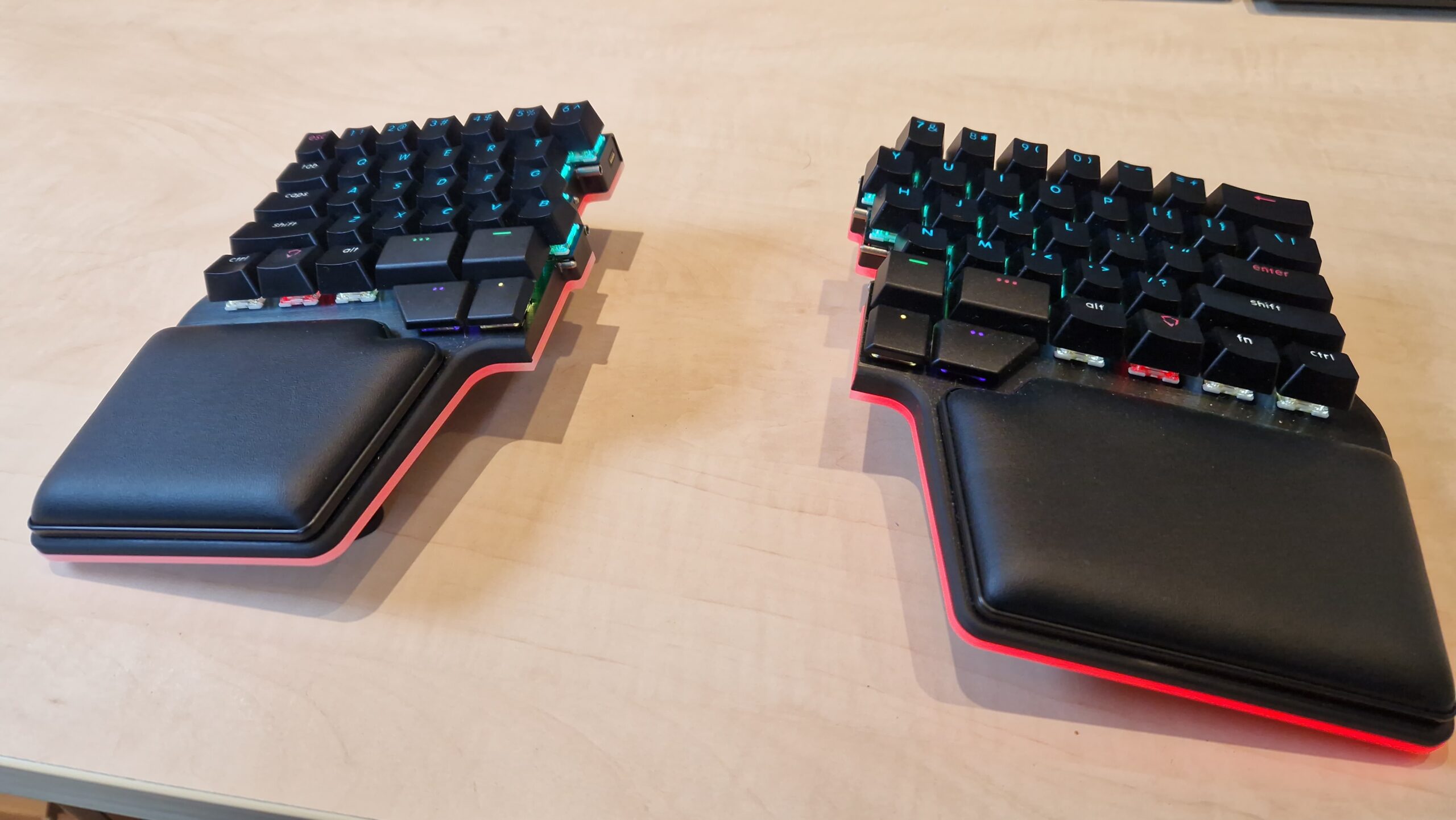
20260115_154245.jpg

Back in November of 2025, I bought a Dygma Raise 2 split keyboard. I had been thinking about buying some kind of split keyboard for some time, but never bought one for several reasons: first of all, my Das 4 mechanical keyboard was (and is) still going strong. Second, they tend to be pretty expensive, and, third, I was a bit hesitant because most have fewer keys than a regular full-sized keyboard and/or have keys in different places, all of which require me to relearn my typing habits.

I started looking into it again in late 2025, when I was looking for a birthday present. I came across Dygma, a Spanish company, that offered two types of highly customisable keyboards, the Defy and the Raise 2. The latter seemed most attractive because it didn’t have a columnar layout, so I expected the learning curve to be less steep. After some more research I ended up buying one, with the wireless option, the tenting option and underglow. Basically the full package.

Fast forward to yesterday, when a colleague asked me about it. She was interested in getting one because she likes having her mouse right in front of her and currently has it on a lower level of the desk she uses. I started writing some pros and cons, but the text grew larger and larger, so I decided to reproduce it here, where it can maybe be of use to more people.

I have been using it since November 2025 as my daily keyboard. A summary of my experience so far:

  • You really have to put the mouse between the two halves. I first had it to the right of the keyboard, with the two halves at shoulder width, but in that case, reaching the mouse (a trackball in my case) meant overextending the lower arm to the right. This soon led to pain in the upper arm and elbow. Like you said: it turns out to be quite comfortable to have the mouse in between the halves.
  • Knowing how to touch type properly will be very helpful. I apparently needed to relearn some keys because initially, when I tried to hit an h or y I used my left hand. Which meant my finger hit “air”.
  • Be aware of the way the keys are laid out: some keyboards have them “the regular way”, i.e. the rows are slightly shifted horizontally compared to each other. As a result, the q is not right above the a (on a US layout), but slightly to the right of it. The alternative is a column layout where each row is straight above the other, i.e. the columns of keys are straight (but the rows may be misaligned). See for example the Dygma Defy keyboard. I was too afraid I’d have to relearn how to type to by a keyboard with a columnar layout.
  • Most split keyboards are “reduced” in the sense that they don’t have F-keys, nor arrows/pgUp/pgDn/home keys. Note that on my keyboard, the ` and ~ are missing too (the missing backtick is frustrating when writing markdown). Instead they tend to use layers that can be accessed via a modifier key (usually near the thumbs). Do not underestimate the effort to relearn your habits. An example: I was already quite comfortable with the Emacs movement shortcuts (C-p for up, C-f for right, etc.) and have configured LibreOffice and Firefox to also implement those as much as possible). This means that I often don’t need to go into the 2nd layer where my arrows and PgUp/Dn live. However… GitLab, for example uses C-b (back; right arrow) to insert two sets of ** for bold and I can’t seem to disable that. I very often still need to look at my keyboard to make sure I get the arrow keys right. Org mode shortcuts like M-S-arrow up to move a heading up become more involved because it’s not only Alt and Shift, but now also the modifier key for the arrows. I guess this last one is mostly a problem for Emacs users. Not that many other computer tools have shortcuts with that many keys. On the other hand, my 3rd layer contains the media playback keys and for some reason those became ingrained in my spine very easily.
  • If you decide on a keyboard with layers, I like it that mine also has LEDs in the keys so you get a visual confirmation of the layer you are in.
  • My keyboard also has a “tenting” option that allows you to angle the halves upwards (so that your palms are pointing a bit more towards each other). I find a 10° angle to be comfortable. However, I don’t think this a strict requirement. It’s a nice to have.
  • For a keyboard with layers, the configuration software is very important. Dygma’s Bazecor tool is solid. It works under Linux without any issues, gets regular updates, can flash the keyboard’s firmware and is easy to use for defining the layers. To get an idea of the options, you can download it and configure a virtual keyboard.
  • Mechanically, it is a great keyboard. No complaints. Sturdy, pleasant keys, similar to my previous regular mechanical keyboard.
  • Mine also has the option for wireless usage, but I tend not to use that. For one, you have to remember to recharge it, but more importantly, it takes a bit longer to wake up (it goes to sleep after x minutes of not using it to save battery life) and I found that to be annoying.
  • The built-in palm rests are great. Very comfortable.
  • Dygma has a 30-day return policy, which is nice, but seems too short to get used to a keyboard and make a proper decision.

Am I happy with it?

Yes, I’m happy with it, but I’m still missing my separate arrow keys. I (think that I) am as fast as I was before with regular typing, but having to use the 2nd layer for arrows and PgUp/PgDn hasn’t fully settled in yet (actually, maybe that is because I can get away with the Emacs movement keys in most cases).

For these last blocks of text I took my previous Das 4 out of storage again to see if I can still go back to it, and to do a proper comparison with the Dygma. And, yes, that works fine. I notice the typing is a bit less comfortable (in terms of positioning my hands), and the keys seem closer to each other, a bit more crowded. Oh, my wrong hand just typed the h. But moving my right hand to and from the arrow keys is as natural and fast as it was before. I guess that part of the discomfort there comes from the fact that regular arrow (and number pad keys) are in a columnar arrangement, whereas on the Dygma Raise their function is taken over by the regular keys ( e.g. the arrows are [, ], \ and +/= on the right side and, additionally, by s, d, f and e on the left side), which are staggered. Similarly, I can still easily type on my laptop keyboard (although I then miss some of the thumb keys of the Raise 2).

Is it worth the price?

Not sure. It was very, very expensive for a keyboard (around €600 with all the options). I bought it as a company expense, so I saved on taxes, but I don’t think I could have justified the expense if I had to pay it from my regular income/salary. I already thought my previous one (a Das 4) was expensive (IIRC just above €200), but that was a good investment compared to its Logitech predecessor (which wasn’t a mechanical keyboard). I did need a separate palm/wrist pad for it.

Would I buy it again?

Probably. The split design feels more comfortable on the shoulders and the tenting option is another bit of comfort. The layered approach is powerful (maybe I’ll need to spend a bit more time on it to see if I can iron out my arrow key issues), and I like it for the media keys and some other shortcuts. The fact that you don’t need to move your hands to the side is more comfortable and less intruding on the typing workflow.

Now my big question is: should I try a split keyboard with columnar layout… E.g. a refurbished Dygma Defy without all the bells and whistles and try it for 29 days… I guess not, I fear the learning curve is too much without the regular keys/key sizes for enter, backspace, shift…

Related Images:

Pinning the Wine package version so I can keep using the reMarkable Windows app

Back in January 2021 I ordered the reMarkable 2 e-paper note-taking “tablet”. I use it for two things: making notes and reading and annotating PDFs. Especially the note taking has changed significantly my working environment: no more stacks of paper notes lying all over my desk. No more trying to find a certain note in a notebook or on a piece of paper.

I do miss using my fountain pen, but the advantages, including having all your notes with you on your phone outweighs this. And, although the remarkable itself runs Linux, there is no Linux version of the desktop app. Unfortunately.

For some time I used community-developed tools, mainly to up- and download PDFs to and from the device. However, as the reMarkable software and file format evolved, more and more things stopped working, so I had to shift to another solution. I managed to install the Windows application in Wine. This works well and also allows me to e.g. share my reMarkable screen in video calls.

A few weeks ago, however, the app failed to start. I wasn’t sure if this was due to an update of the remarkable app itself or because the Wine version in Ubuntu 24.04 was upgraded from version 9.22 to 10.0rc2. It turned out to be the latter because my laptop definitely had an older (previously known good) version of the app that hadn’t been updated. Updating the Wine winehq-devel package, however, broke the app (a bug has been reported, see the list of links below).

Now, as you may have noted above, I was using the winehq-devel package, so I thought it was as simple as switching to the winehq-stable package. Unfortunately, that package is not available in Ubuntu 24.04. While looking for deb packages I found that the Wine HQ repo contained older package versions. So I decided to use the package pinning functionality of the Apt packaging system. I created the file /etc/apt/preferences.d/wine with the following contents:

Package: winehq-devel
Pin: version 9.*
Pin-Priority: 1000

Package: wine-devel
Pin: version 9.*
Pin-Priority: 1000

Package: wine-devel-amd64
Pin: version 9.*
Pin-Priority: 1000

Package: wine-devel-i386:i386
Pin: version 9.*
Pin-Priority: 1000

I determined the required package names by starting with the first one and then kept trying to install the winehq-devel package until it actually finished successfully. I set the pin priority to 1000, which means “causes a version to be installed even if this constitutes a downgrade of the package”, according to the apt_preferences man page. And, indeed, that is what Apt proposes:

The following additional packages will be installed:
  wine-devel wine-devel-amd64 wine-devel-i386:i386
The following NEW packages will be installed:
  winehq-devel
The following packages will be DOWNGRADED:
  wine-devel wine-devel-amd64 wine-devel-i386:i386
0 upgraded, 1 newly installed, 3 downgraded, 0 to remove and 15 not upgraded.
Need to get 229 MB of archives.
After this operation, 8.414 kB disk space will be freed.
Do you want to continue? [Y/n]

For completeness, these are the Wine packages that are currently installed on my system:

ii  wine-devel                                       9.22~noble-1                                amd64        WINE Is Not An Emulator - runs MS Windows programs
ii  wine-devel-amd64                                 9.22~noble-1                                amd64        WINE Is Not An Emulator - runs MS Windows programs
ii  wine-devel-i386:i386                             9.22~noble-1                                i386         WINE Is Not An Emulator - runs MS Windows programs
ii  winehq-devel                                     9.22~noble-1                                amd64        WINE Is Not An Emulator - runs MS Windows programs

As a side note, in order to make sure no other Wine settings were influencing my tests, I installed the reMarkable application in a fresh, dedicated WINEPREFIX:

WINEPREFIX=~/reMarkable/ wine ~/tmp/Downloads/reMarkable-3.16.1.901-win64.exe

After which I could start the application like this:

WINEPREFIX=~/reMarkable/ wine ~/reMarkable/drive_c/Program\ Files\ \(x86\)/reMarkable/reMarkable.exe

After this fresh install, the Gnome shell menu entry for the app didn’t work any more, so I had a look at the corresponding .desktop file in ~/.local/share/applications/wine/Programs/reMarkable/reMarkable.desktop. After some playing around I guess the problem was in missing double quotes around the path to the .exe file. The following works:

[Desktop Entry]
Name=reMarkable
Exec=env WINEPREFIX="/home/lennart/reMarkable" wine "/home/lennart/reMarkable/drive_c/Program Files (x86)/reMarkable/reMarkable.exe"
Type=Application
StartupNotify=true
Path=/home/lennart/reMarkable/dosdevices/c:/Program Files (x86)/reMarkable
Icon=94BF_reMarkable.0
StartupWMClass=remarkable.exe

Related Images:

Shucking hard drives

I recently bought several external hard drives. After looking around on the Internet a bit I settled for Seagate Expansion Desktop (v2) drives. I had read about these drives before and according to the internet the 10TB and larger drives have very interesting drives inside. In fact, I recently bought two 10TB versions of this drive, which contained Barracuda Pro drives (ST10000DM004). These drives are rated for 24hr/day usage, and spin at 7200 rpm so they work very well in a small NAS machine I use. At the time of writing these 10TB external drives cost around €193, whereas the bare internal drive itself costs around €290. Quite the difference! This is why people love so-called ‘shucking’: removing the drives from the enclosure and using them in e.g. their home NAS or home server.

For my annual offline backups I bough a Seagate Expansion Desktop (v2) 12TB (part nr. STEB12000400). For this drive things are even better: it contains an IronWolf Pro drive (ST12000NE008). These are true server drives rated for 24×7 use in servers of up to 24 drive bays. In fact, I use 8TB and 10TB IronWolf Pro’s in servers I use for work. Here the price difference is €210 for the external drive (a nice discount in a Dutch web shop recently) vs. €360 for the internal drive.

Of course, warranty can be an issue when shucking drives. I haven’t (yet?) had the need to return one of my shucked drives. I guess I’d have to put them back into the external enclosures. This would be possible, although I didn’t manage to remove the enclosures without damaging the little clamps that kept the lid attached to the rest of the case… But at these price differences I will take the risk (at least for personal use; professionally warranty without hassle may be worth the extra cost).

Related Images:

Experimenting with Google’s AdSense

I don’t think this blog has any regular readers (especially since I’m not posting very regularly), but if they would exist they would have noticed two prominent changes in the last two days:

  1. the WordPress theme for the site has changed, and
  2. this blog now has several advertisements from Google’s AdSense programme.

Obviously, the two changes are tied together. From almost the first day of this blog’s existence I had been using the Carrington theme, and although I still like it a lot (including the fact that it has two columns on the left), its appearance on mobile devices was sub-par. To fix this I looked around for a theme with “responsive design” and the current one looks quite nice both on my desktop machines and on my phone.

Changing themes had been on my list for quite some time, but the reason that I took the time to actually do it was because of my idea to play around a bit with Google’s AdSense program. Apparently, Google likes it if a site looks well on all platforms. The main reason to add ads to this blog was to experiment a bit and simply to see if this is a viable way of recouping (some of) the costs associated with hosting this blog. I’ve got a decent number of monthly views (at least I think it’s decent 🙂 and it’s definitely more than I expected when I started out) so why not give it a try. Moreover, since this is my personal, low profile site, it can also give me an idea if it’s worth having advertisements on some of the community sites that I run.

So, all in all, I think the theme change is definitely a good one, and about the ads, we’ll see. Maybe it works out, maybe it doesn’t. All in all I hope they don’t interfere too much with normal reading of the site.

Related Images:

Verandering

En na de vorige post begint dit blog aan een nieuwe koers. De reiziger is thuis, om Boudewijn de Groot maar eens te citeren, dus tijd voor verandering. De verandering houdt in dat ik op deze plek over andere dingen ga bloggen. Waarschijnlijk computer-, techniek- en muziekgerelateerde zaken, wellicht niet direct interessant voor de mensen die hier hun emailadres hadden opgegeven om op de hoogte te blijven van mijn Afrikatijd. Zij kunnen nu afhaken (mocht het niet lukken om je emailadres af te melden, stuur dan gerust een mailtje, dan kijk ik er even naar). Een andere verandering is die van taal. In principe ga ik nu over naar het Engels om mijn hersenspinsels ook toegankelijk te maken voor de rest van de wereld.

Hopelijk blijven er mensen lezen!

Related Images:

© 2026 Lennart's weblog

Theme by Anders NorénUp ↑